> ## Documentation Index
> Fetch the complete documentation index at: https://docs.siloed.ai/llms.txt
> Use this file to discover all available pages before exploring further.
# Quick Start
> Get started with Siloed in minutes
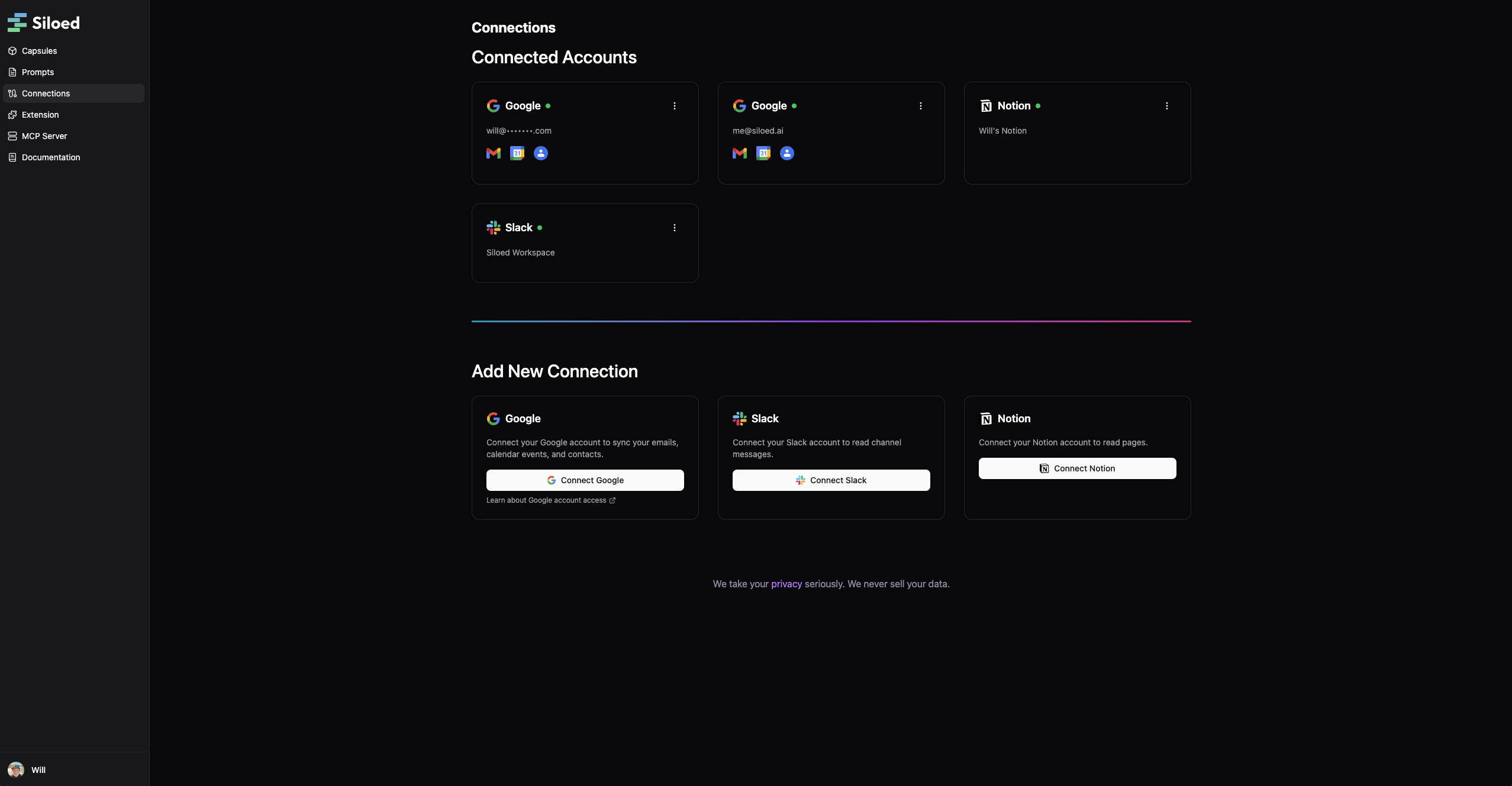
## Step 1: Create Your First Connection
From the Siloed [connections page](https://siloed.ai/connections), choose a provider and follow the authentication steps.
 ## Step 2: Install the Browser Extension
Install the Siloed browser extension from the [Chrome Web Store](https://chromewebstore.google.com/detail/siloed/mcdjalkcfngajdmohbobbigoenkgfjik).
## Step 3: Use Your Capsule in an AI Application
* Open any AI application in your browser, like [ChatGPT](https://chatgpt.com/)
* Click the Siloed extension to view your capsules
* Drag and drop a capsule onto the chat window to load it into your chat context
Not all websites support drag and drop. Use copy/paste or a direct download to add capsules to any chat.
## What's Next?
Now that you've created your first connection and capsule, you can:
* [Add more connections](/concepts/connections) to different data sources
* Create specialized [capsules](/concepts/capsules) for different purposes
* Generate [webpage capsules](/gateways/browser-extension#webpage-capture) from any open webpage
* Set up [custom prompts](/concepts/prompts) for frequent use cases
## Step 2: Install the Browser Extension
Install the Siloed browser extension from the [Chrome Web Store](https://chromewebstore.google.com/detail/siloed/mcdjalkcfngajdmohbobbigoenkgfjik).
## Step 3: Use Your Capsule in an AI Application
* Open any AI application in your browser, like [ChatGPT](https://chatgpt.com/)
* Click the Siloed extension to view your capsules
* Drag and drop a capsule onto the chat window to load it into your chat context
Not all websites support drag and drop. Use copy/paste or a direct download to add capsules to any chat.
## What's Next?
Now that you've created your first connection and capsule, you can:
* [Add more connections](/concepts/connections) to different data sources
* Create specialized [capsules](/concepts/capsules) for different purposes
* Generate [webpage capsules](/gateways/browser-extension#webpage-capture) from any open webpage
* Set up [custom prompts](/concepts/prompts) for frequent use cases